How Visitation Validation Rules Work: Selfie, Geofence, and What to Do When You’re Blocked
Your visitation policy controls two checks that run every time you start (Check-In) or finish (Check-Out) a visit: Selfie and Geofence. Each can be turned ON or OFF independently by your administrator, and the rules apply equally to Check-In and Check-Out.
This article explains every situation where the visit can be blocked, allowed-but-flagged, or skipped — and what to do in each one.
Quick navigation
- The four standard configurations
- Cases that block you from visiting
- Cases that allow the visit but flag it
- A note on what the selfie is for
- Where to find your validation results after a visit
- Quick reference table
The four standard configurations
Your administrator chooses one of these four combinations when setting up your visitation policy. The same rule set applies to both Check-In and Check-Out.
| # | Selfie | Geofence | What runs at Check-In and Check-Out |
|---|---|---|---|
| A | OFF | OFF | No validation — visit recorded with timestamp and GPS only |
| B | OFF | ON | Location radius check only |
| C | ON | OFF | Selfie capture only |
| D | ON | ON | Both selfie capture AND location radius check |
As a field worker, you don’t pick the configuration — you just follow what the app shows you. If you’re unsure what your specific policy expects, ask your admin.
Cases that block you from visiting
These situations stop Check-In or Check-Out from completing. No partial visit is saved until the issue is resolved.
1. No visitation policy is assigned to you
What you’ll see: When you tap any channel card, a blocking modal appears with the title “Akses Channel Tidak Tersedia” and the message “Anda belum memiliki Kebijakan Kunjungan (Visitation Policy) yang aktif. Silakan hubungi pusat bantuan untuk meminta penugasan kebijakan kunjungan yang sesuai.”
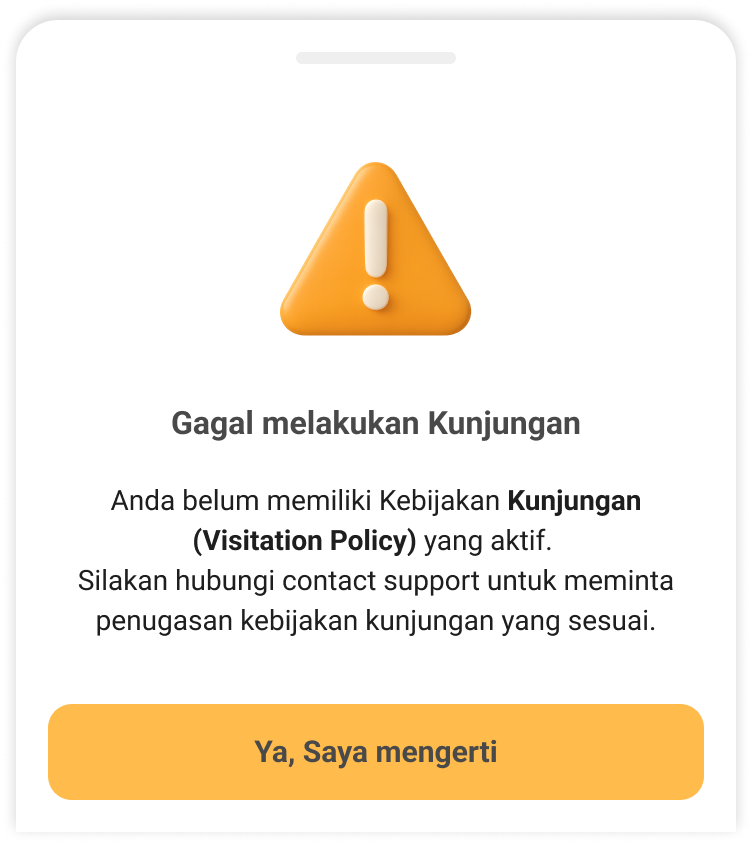
Why this happens: Your account hasn’t been assigned an active visitation policy yet. Without one, the system has no rules to apply at Check-In.
What to do: Tap “Ya, Saya Mengerti” to close the modal, then contact your internal admin or help center to request a visitation policy assignment. The Channel Detail page will not open and no draft is created until a policy is assigned.
2. Location permission denied (Geofence ACTIVE)
What you’ll see: When you tap Check-In, the system prompts you to allow location access. If you deny it, Check-In cannot proceed.
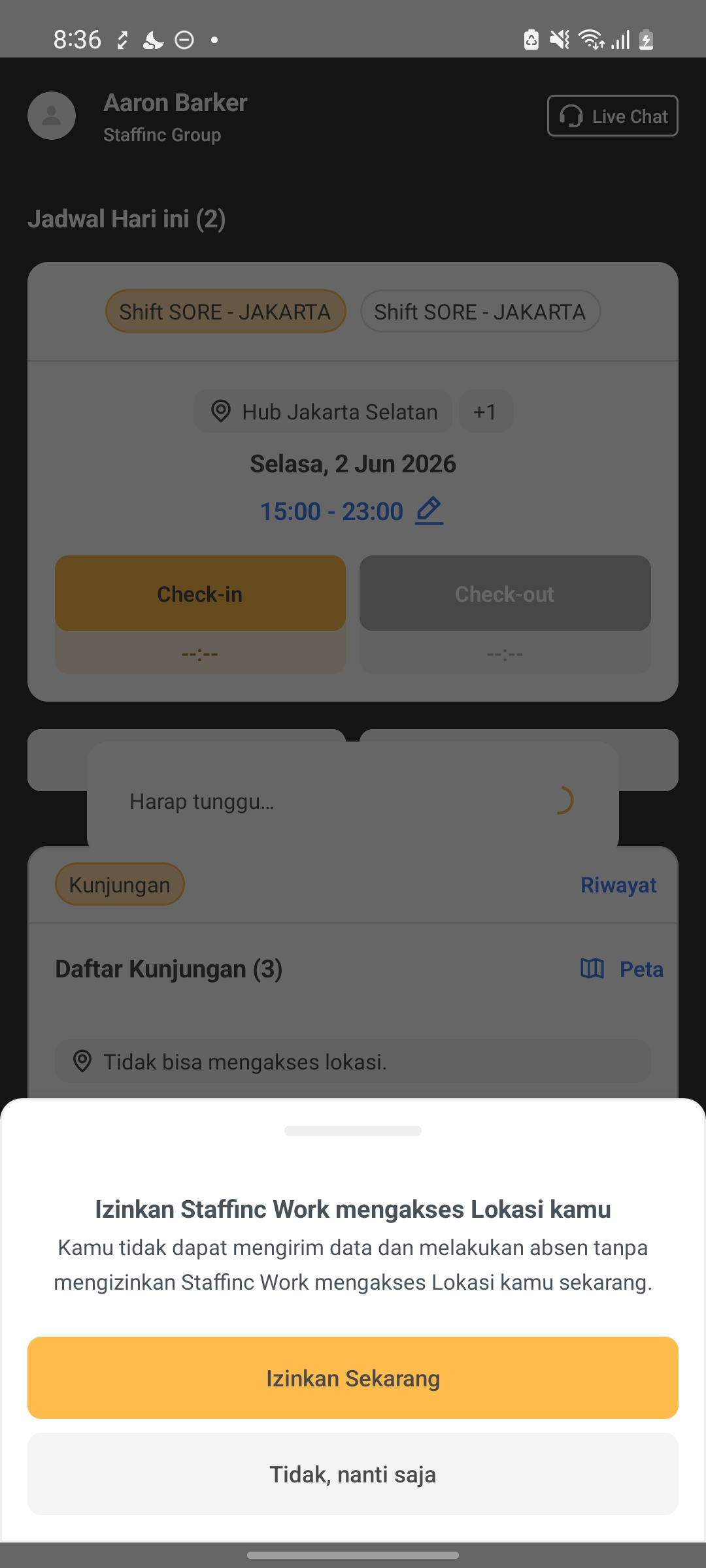
Why this happens: Your policy requires geofence validation, which needs your live GPS coordinates. Without permission, the system has no way to confirm you’re at the channel.
What to do: Open your device Settings → Apps → [App Name] → Permissions, grant Location permission, then return to the app and tap Check-In again. No partial visit is saved.
3. Camera permission denied (Selfie ACTIVE)
What you’ll see: After geofence validation passes (or immediately, if no geofence is required), the camera should open for the selfie. If you previously denied camera permission, Check-In cannot proceed.
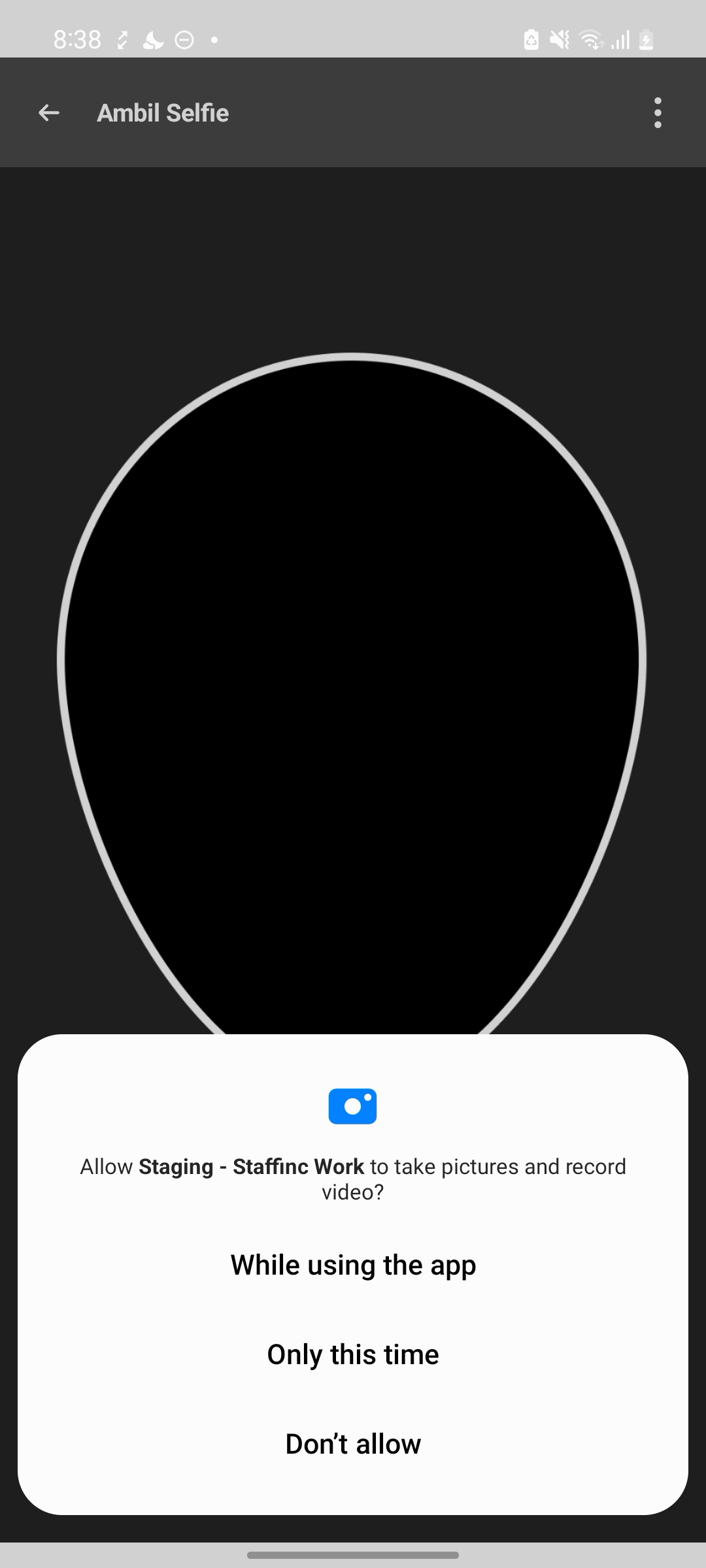
Why this happens: Your policy requires a selfie as proof of visit. Without camera access, the system can’t capture the required image.
What to do: Open your device Settings → Apps → [App Name] → Permissions, grant Camera permission, then retry Check-In.
4. No network connection
What you’ll see: The Check-In process is blocked with a network error message.
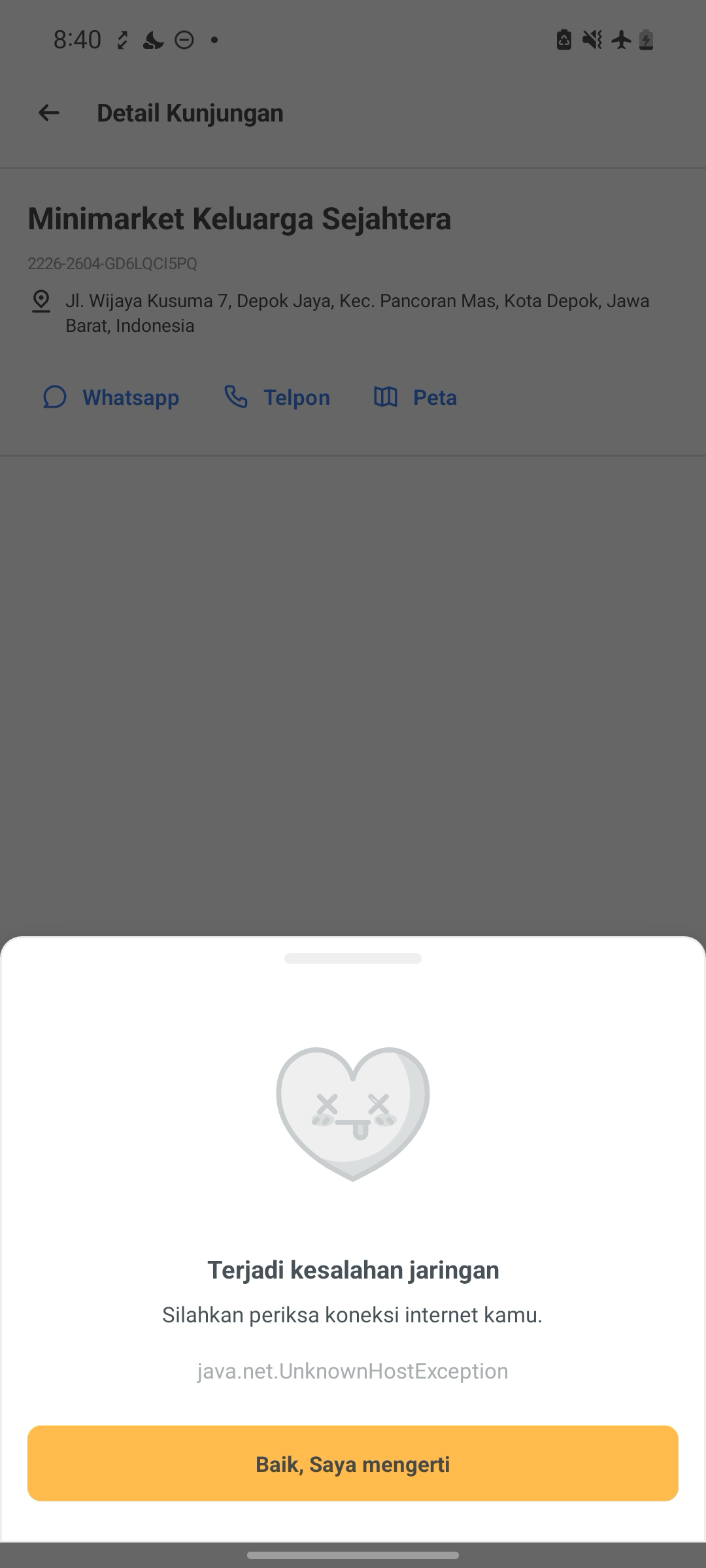
Why this happens: This release does not support offline mode. Check-In and Check-Out both require a live connection to the server.
What to do: Reconnect to a working network (mobile data or WiFi), then retry. Offline visitation support is planned for a future release.
5. A visit is already in progress for this channel
What you’ll see: When you tap Check-In on a channel that already has an in-progress visit, the system blocks the new attempt and redirects you back to the ongoing visit screen.
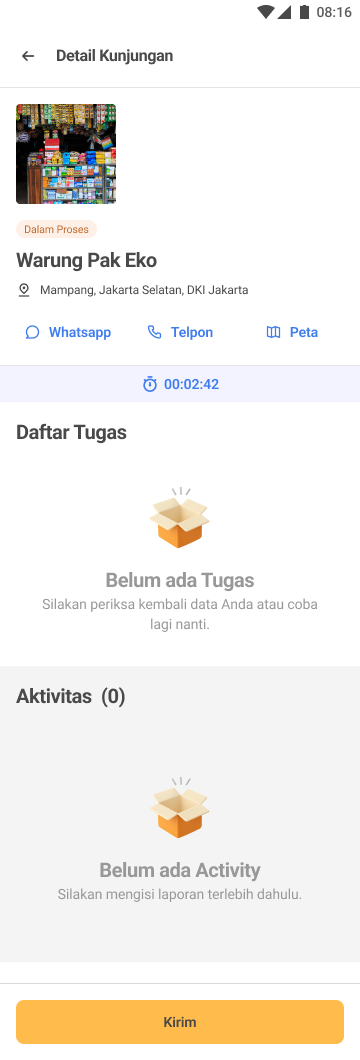
Why this happens: Only one in-progress (Dalam Proses) visit can exist per channel at a time. Starting a new one would create conflicting records.
What to do: Complete the existing in-progress visit (tap Kirim → Check-Out) before starting a new one. If you no longer want to complete it, the draft will be auto-cleaned when the device date changes at midnight.
Cases that allow the visit but flag it
These situations let you continue with Check-In or Check-Out, but the system records a flag on the visit so admins can review the data later in reports.
6. The channel has no stored coordinates (Geofence ACTIVE)
What you’ll see: A non-blocking info message appears: “Lokasi outlet belum lengkap. Kunjungan dicatat tanpa validasi lokasi.”
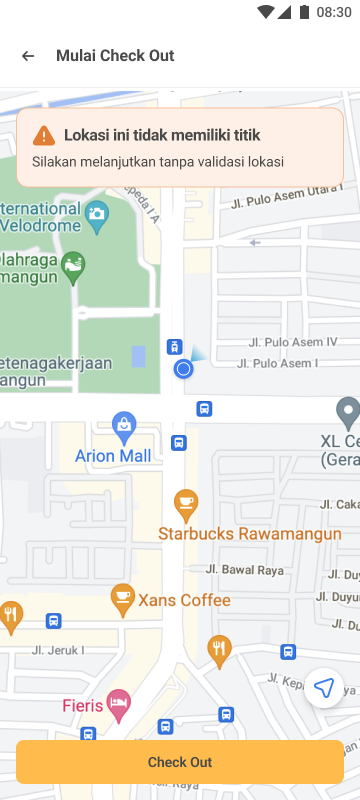
What the system does: Geofence validation is skipped entirely. Your GPS at Check-In and Check-Out is still captured for reference. The visit record is flagged with geofence_status = not_executed and geofence_reason = missing_channel_location.
What to do: Continue the visit normally. Optionally, let your admin know that this channel’s coordinates should be added so future visits can be validated properly.
7. The channel has coordinates but no radius (Geofence ACTIVE)
What the system does: A default radius of 100 meters is applied automatically, and your location is validated against that. The visit record stores radius_source = default and radius_value = 100, so admins can distinguish default from client-configured radii in reports.
What you’ll see: The same map and radius validation flow as a normal geofence check — there is no special on-screen flag for this case.
What to do: Continue the visit normally. The default radius behaves the same as a configured one — you’ll only notice a difference if you’re at the edge of 100m.
8. You’re outside the configured radius (Geofence ACTIVE)
What you’ll see: A non-blocking info message appears: “Kunjungan berhasil dikirim, namun terdeteksi berada di luar radius lokasi (Tidak Valid).”
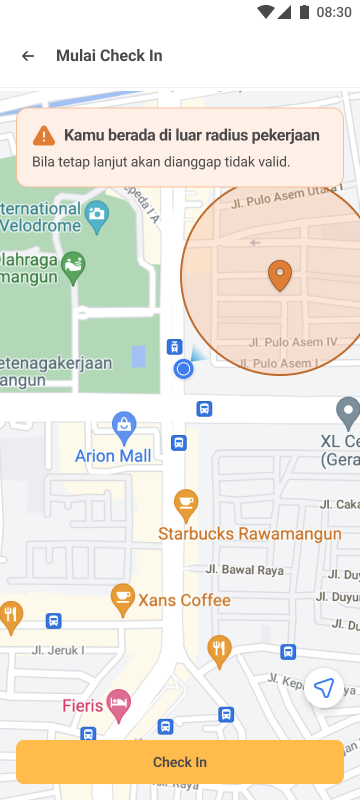
What the system does: Check-In or Check-Out is allowed to continue. The visit record is flagged with geofence_status = invalid and geofence_reason = outside_radius. Admins can later filter and analyze these flagged visits in reports and audits.
What to do: Continue if you’re legitimately at the channel — sometimes the stored coordinates are slightly off. If you’re not actually at the channel, be aware that the flagged record will be visible to your admin in audits.
A note on what the selfie is for
In this release, the selfie is proof of visit only. The system does not perform face matching, liveness detection, or any comparison against your profile photo — any clear selfie will pass.
Future releases will add Face Recognition and Liveness Detection, but for now: capture, confirm, and continue.
What happens to your validation results after a visit
Detailed validation outcomes — such as whether your location matched the channel radius, whether the channel was missing coordinates, or whether the default radius was applied — are not shown to you on the mobile app.
These results are recorded in the background on every visit and are visible only to your administrator through the Visitation Report export in the Client Portal. Your admin can filter, review, and analyze flagged visits there.
What this means in practice for you as a field worker:
- The on-screen messages described in the cases above (for example, "Lokasi outlet belum lengkap..." or "Kunjungan berhasil dikirim, namun terdeteksi berada di luar radius...") are the only feedback you'll see about a flagged visit. Once you proceed past those messages, the flag is recorded silently.
- You will not see a "Match / Not Relevant / Outside Radius" label anywhere in the mobile app — not on the Channel Detail, not in Riwayat, and not on past-date views.
- If you need to confirm whether a specific past visit was flagged or accepted cleanly, ask your admin to check the exported Visitation Report for that date.
Future releases may expose a portion of this data on mobile (for example, once Face Recognition and Liveness Detection are introduced), but for now, treat the on-screen messages during Check-In and Check-Out as your full source of feedback.
Quick reference: which outcome applies to you?
| Situation | Result | What to do |
|---|---|---|
| No policy assigned | ⛔ Blocked | Contact admin |
| Location permission denied | ⛔ Blocked | Grant permission in Settings |
| Camera permission denied | ⛔ Blocked | Grant permission in Settings |
| No network | ⛔ Blocked | Reconnect and retry |
| Existing in-progress visit on this channel | ⛔ Blocked | Complete the existing visit first |
| Channel has no coordinates (Geofence ON) | ⚠️ Flagged, continue | Notify admin to add coordinates |
| Channel has no radius (Geofence ON) | ⚠️ Default 100m applied, continue | No action needed |
| Outside the channel radius (Geofence ON) | ⚠️ Flagged “Tidak Valid”, continue | Only proceed if legitimately at channel |
If you’ve followed this guide and still can’t get a visit to start, contact your internal admin team — they can verify your visitation policy assignment and check whether the channel itself is properly configured.