Understanding the Mobile Edit Channel Module
Mobile Edit Channel Overview: Feature Lifecycle, Key Concepts, and Data Reference Rules
What is Mobile Edit Channel?
Mobile Edit Channel is a feature that allows your field employees to request changes to channel data directly from the Staffinc Work mobile app — while they are out in the field. Whether a channel was originally created by the employee or by an admin in the Client Portal, eligible employees can propose corrections or updates to information such as the channel name, address, contact details, or location coordinates.
In simple terms, this feature puts the power of data correction in the hands of the people who visit those channels every day. Instead of waiting for an employee to report a data issue and then having an admin manually update it in the portal, the employee can submit the correction on the spot during their visit.
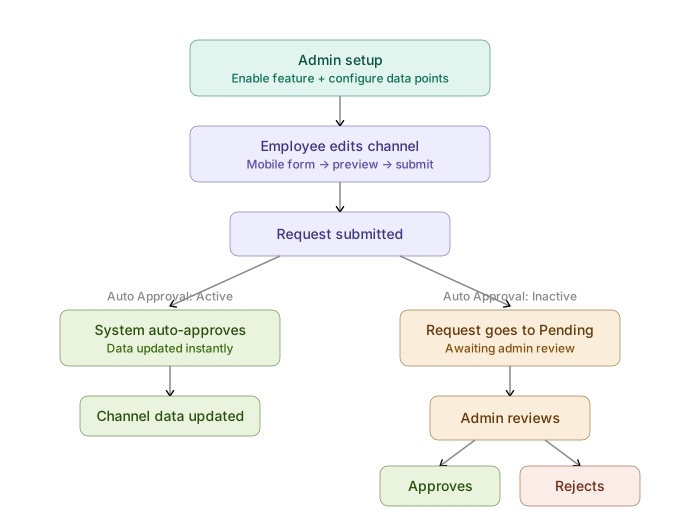
How Does It Work? The End-to-End Flow
The Mobile Edit Channel process involves a simple lifecycle with three stages:
Stage 1 — Admin Sets Up the Feature
Before any employee can use the Mobile Edit Channel, an admin needs to do two things in the Client Portal. First, enable the “Edit Channel” permission in the relevant Visitation Policy — this controls which teams of employees can access the feature. Second, configure which specific channel data points (such as Channel Name, Contact Person, Address, etc.) employees are allowed to edit through the Mobile Edit Channel settings page.
Stage 2 — Employee Submits an Edit Request
Once the feature is enabled, eligible employees will see an “Edit Channel Data” button on the Detail Kunjungan page for today’s visitations. They tap the button, make their changes in a form, review the changes on a preview page, and submit.
Stage 3 — The System Processes the Request
What happens after the employee submits depends on the approval mode the admin selected (explained in the next section). The changes are either applied immediately to the channel database or held for an admin to review and approve.
The Two Approval Modes
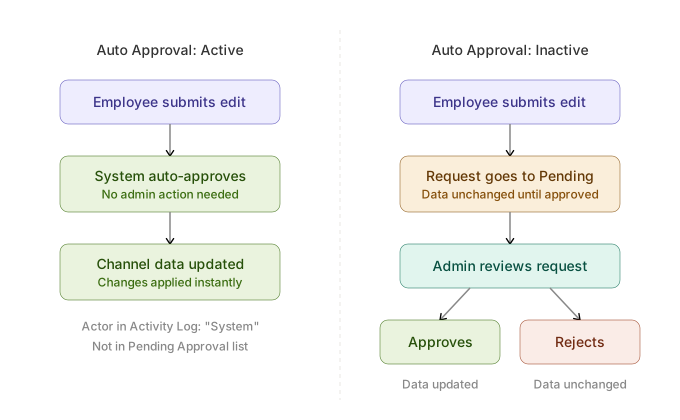
When the admin enables Edit Channel in a Visitation Policy, they also choose one of two approval modes. This is the most important decision in the setup process, as it determines how much control the admin retains over employee-submitted edits.
Auto Approval: Active (Automatic)
When this mode is selected, the employee’s changes are applied to the channel database immediately upon submission — no admin review is needed. The request does not appear in any approval queue. This is the fastest path from correction to updated data.
When to use this mode: When you trust your field teams to submit accurate corrections, and speed is more important than verification. Common examples include updating a contact phone number, correcting a misspelled channel name, or adjusting a store’s operating hours.
Auto Approval: Inactive (Manual Review)
When this mode is selected, the employee’s changes are not applied right away. Instead, the request enters a “Pending” status and appears in the admin portal’s Pending Approval list. An admin must review the proposed changes and either approve or reject the request. Channel data stays exactly as it was until the admin explicitly approves.
When to use this mode: When you need a verification step before changes go live. This is recommended for sensitive data such as location coordinates (which affect geofence validation), financial information, or any data point where incorrect changes could disrupt operations.
When Can an Employee Use Edit Channel?
The “Edit Channel Data” button appears on the Detail Kunjungan page only when all of the following conditions are met at the same time. If any one condition is not met, the button is either hidden or a message appears explaining why the edit cannot proceed.
The employee’s Visitation Policy has Edit Channel set to Active.
This is the master switch. If the admin has not enabled the feature for the employee’s policy, the button will not appear under any circumstances.
The visitation date is today.
Edits can only be made on today’s visits. The button does not appear on past visitation records or future-dated visits. This ensures that edit requests are tied to active, current-day field activity.
The device is online.
The employee’s device must have an active internet connection. If the device is in offline mode (Mode Luring: ON), the button will not appear. The edit process requires connectivity throughout — from opening the form to submitting the request.
The channel is Active.
The channel must be in an Active status. If the channel has been deleted, deactivated, or is still pending approval from Mobile Channel Creation, a message will appear explaining the situation when the employee taps the button.
No pending edit request already exists for this channel.
Only one edit request can be pending for a given channel at any time. If another employee has already submitted an edit for the same channel and it is still awaiting admin approval, a message will appear showing who submitted the request and when.
The button is available at every stage of the visit:
The employee can access the Edit Channel feature before checking in (Pre-Check-In), during an active visit (In Progress), and after checking out (Post-Check-Out) — regardless of whether the visit type is PJP or Non-PJP.
The button is never available on historical records.
If the employee views a visitation record from a past date through the Riwayat (history) page, the edit button will not appear — even if all other conditions would otherwise be met.
What Happens If Something Blocks the Edit?
If the employee taps “Edit Channel Data” but a condition prevents the edit from proceeding, a message appears on screen (called a “blocking drawer”) explaining the reason. The employee can dismiss the message and return to the Detail Kunjungan page. Here are the most common scenarios and what they mean:
“There is a pending modification request submitted by [Name] on [Date] [Time]”
What this means: Another employee has already submitted an edit for this channel and it has not been resolved yet. Only one pending request per channel is allowed at a time. The admin needs to approve or reject the existing request before a new edit can be submitted.
“Channel is Pending / Deleted / Inactive”
What this means: The channel itself is in a state that does not allow edits. This could happen if the channel was recently created via Mobile Channel Creation and is still awaiting approval, if an admin has deactivated the channel, or if the channel was deleted. The employee should contact their supervisor or admin for clarification.
“No data points available for editing”
What this means: The admin has set all channel data point attributes to “not editable” in the Mobile Edit Channel settings. There are simply no fields for the employee to modify. The admin needs to activate at least one data point in the settings for the feature to be usable.
Network connection lost during the edit process
What this means: The device lost internet connectivity while the employee was filling out the form (or Mode Luring was activated). All unsaved input is discarded and the employee is returned to the Detail Kunjungan page. No partial draft is saved. The employee can try again once connectivity is restored.
“There is a pending modification request…” (shown at submission time)
What this means: Another employee submitted an edit for the same channel while the first employee was still filling out the form, and that other employee’s request was accepted first. This is a rare timing conflict. The employee’s submission is rejected, and they are returned to the Detail Kunjungan page. Note: This conflict only occurs when Auto Approval is Inactive. When Auto Approval is Active, multiple employees can submit edits independently without conflict.
How Do Edits Affect the Visitation Process?
This is one of the most important concepts to understand about the Mobile Edit Channel. The impact of an edit on the visitation process depends on two factors: when the edit was submitted (before, during, or after the visit) and which approval mode is in effect.
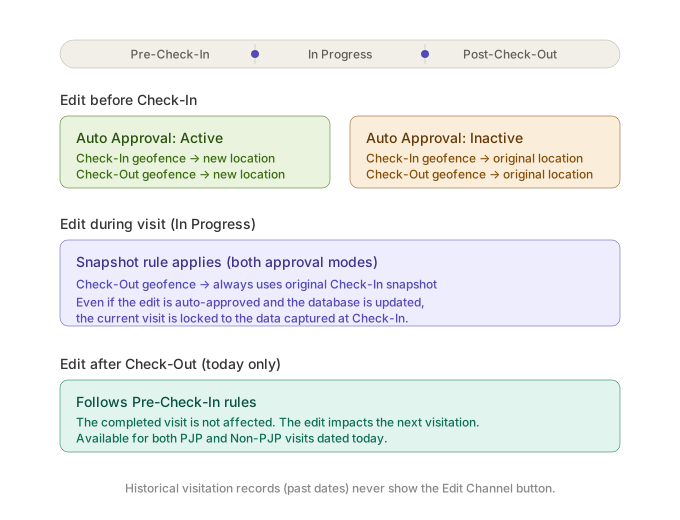
Editing Before Check-In (Pre-Check-In)
With Auto Approval Active:
The employee’s changes are applied to the channel database immediately. When the employee proceeds to Check-In, the system uses the new, updated channel data — including any updated location coordinates for geofence validation. This means the employee should be physically at the new location for the Check-In to succeed.
With Auto Approval Inactive:
The employee’s changes are not applied yet — they are waiting for admin review. When the employee proceeds to Check-In, the system uses the original channel data that existed before the edit was submitted. If the employee changed the location coordinates, the geofence will still validate against the original location, not the new one.
Editing During a Visit (In Progress)
This is where the “snapshot” rule comes into play. When an employee checks in to a visitation, the system takes a snapshot — a frozen copy — of the channel data at that exact moment. This snapshot becomes the reference point for everything that happens during the visit, including geofence validation at Check-Out.
Regardless of the approval mode, if an employee submits an edit during an active visit:
- The current visit continues using the snapshot from Check-In — it is not affected by the edit
- Even if the edit is auto-approved and the channel database is updated, the current visit’s snapshot does not change
- The Check-Out geofence will validate against the original Check-In location, not any newly approved location
What this means in practice: If an employee corrects the channel’s location coordinates during a visit and the change is auto-approved, the system will still use the original location for the Check-Out geofence. The new coordinates will take effect starting from the next visitation.
With Auto Approval Inactive, there is an additional consideration: the pending request blocks the edit button for all employees on that channel until the admin resolves it.
Editing After Check-Out (Post-Check-Out)
For completed visits dated today, the edit flow follows the same rules as editing before Check-In. Because the visit is already finished, the edit has no impact on the completed visit — it will affect the next visitation instead.
Both PJP and Non-PJP employees can access the edit feature after checking out, as long as the visitation date is today and all other eligibility conditions are met.
Summary: Who Does What?
For Admins:
- Enable “Edit Channel” in the Visitation Policy for the relevant team(s) and choose the approval mode (Auto Approval Active or Inactive)
- Configure which channel data points employees are allowed to edit in Settings → Task Operations → Channel → Mobile Edit Channel
- If Auto Approval is Inactive, review pending edit requests in the Pending Approval tab → Edit Channel section. Approve or reject each request (rejection requires a mandatory reason)
- Monitor the Activity Log on the Channel Detail page for a complete audit trail of all submissions, approvals, and rejections
For Field Employees:
- Open the Detail Kunjungan page for today’s visitation
- Tap “Edit Channel Data” (if the button is visible and all eligibility conditions are met)
- Fill out the form with corrections, review the preview, and submit
- After submission: if Auto Approval is Active, the changes take effect immediately. If Auto Approval is Inactive, wait for the admin to approve the request
For Operations/Supervisors:
- Understand which approval mode is configured for your team’s policy
- Be aware that edits made before Check-In with Auto Approval Active will change the data used for geofence validation
- If you see unexpected geofence failures, check whether a channel location was recently edited and whether the employee was at the new or original location at the time of Check-In
- Use the Activity Log to review the history of all channel edits for audit and troubleshooting purposes
Quick Reference: Data Reference Rules
| When the Edit is Submitted | Auto Approval Active | Auto Approval Inactive |
|---|---|---|
| Before Check-In | Changes applied immediately. Check-In uses new data. Geofence validates against new location. | Changes pending. Check-In uses original data. Geofence validates against original location. |
| During Visit (In Progress) | Channel database updated, but current visit uses the Check-In snapshot. Check-Out geofence uses original location. | Request is Pending. Current visit uses the Check-In snapshot. No data changes until admin approves. |
| After Check-Out | Same as Before Check-In — changes applied immediately. Affects the next visit. | Same as Before Check-In — changes pending. Affects the next visit once approved. |
For step-by-step instructions on setting up and using Mobile Edit Channel, refer to the following articles:
- How to Enable Edit Channel & Auto Approval in a Visitation Policy
- How to Configure Editable Channel Data Points for Mobile
- How to Access the Edit Channel Feature from the Detail Kunjungan
- How to Fill Out the Edit Channel Data Form
- How to Review and Submit a Channel Edit Request